
spekterm on your phone
spekterm for Android puts the spekterm on your computer in your pocket: you are notified when an agent waits for you, and you can read its conversation, reply, and answer its prompts from wherever you are.
Get it on Google Play. It is free and open source (spekhq/spekterm-android).
A companion, not a standalone app
Section titled “A companion, not a standalone app”The phone app runs nothing by itself. Your agents, terminals, and repositories stay on your computer; the phone is a window onto them. So:
- spekterm must be running on your computer. When it is closed (or the computer is asleep), the phone cannot connect, and it has nothing to show.
- The phone must be able to reach your computer: on the same network, over Tailscale, or through a port you forward. See Networks.
- There is no server in between. No account, no relay, no push service: the phone connects straight to your computer, and notifications arrive over that same connection.
What you can do from the phone
Section titled “What you can do from the phone”- Get notified when an agent waits for you, asks for a choice or a permission, finishes a handoff, or when an inbox item arrives.
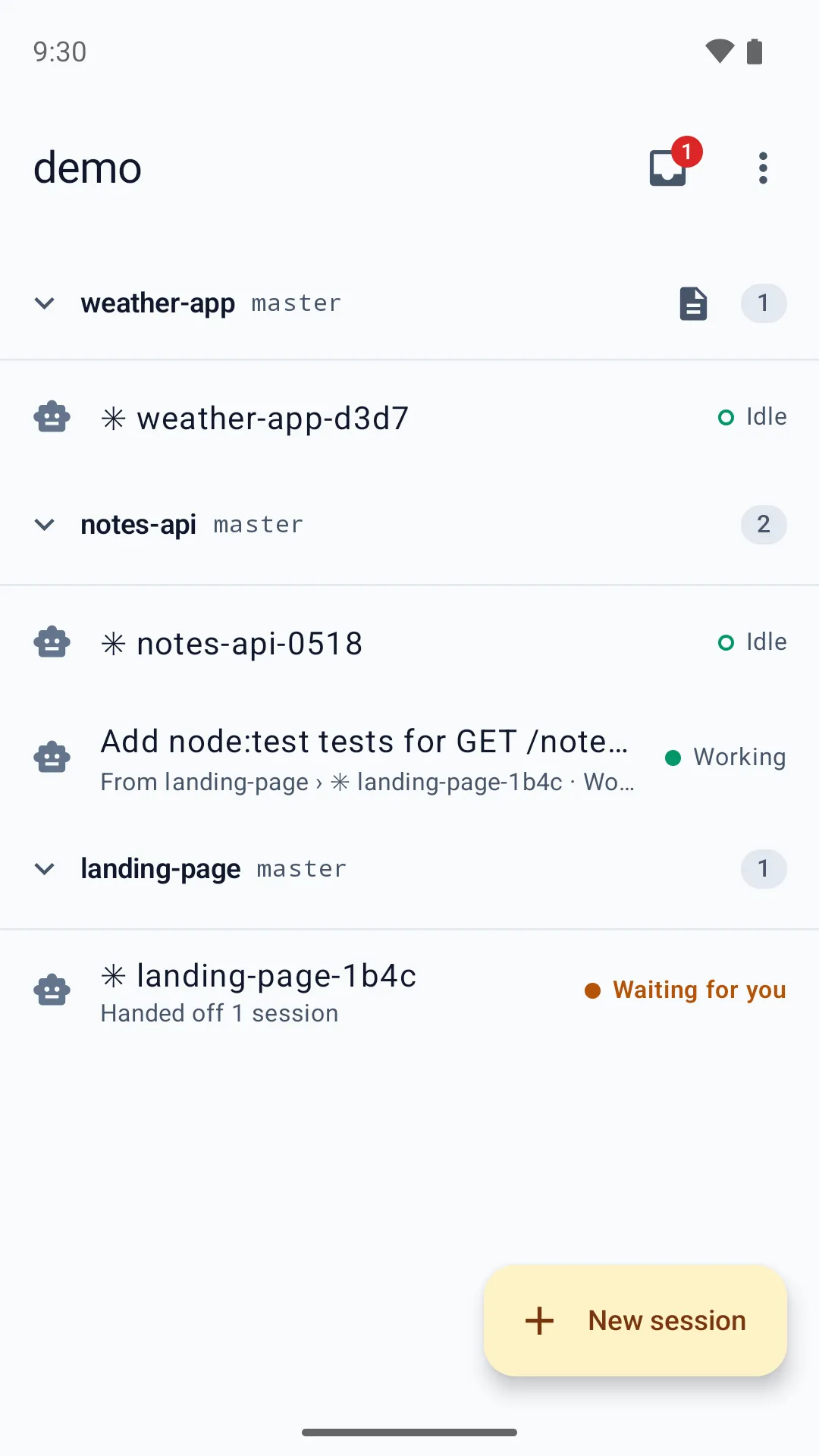
- See every session by folder, with each agent’s state: working, waiting for you, idle, or dormant.
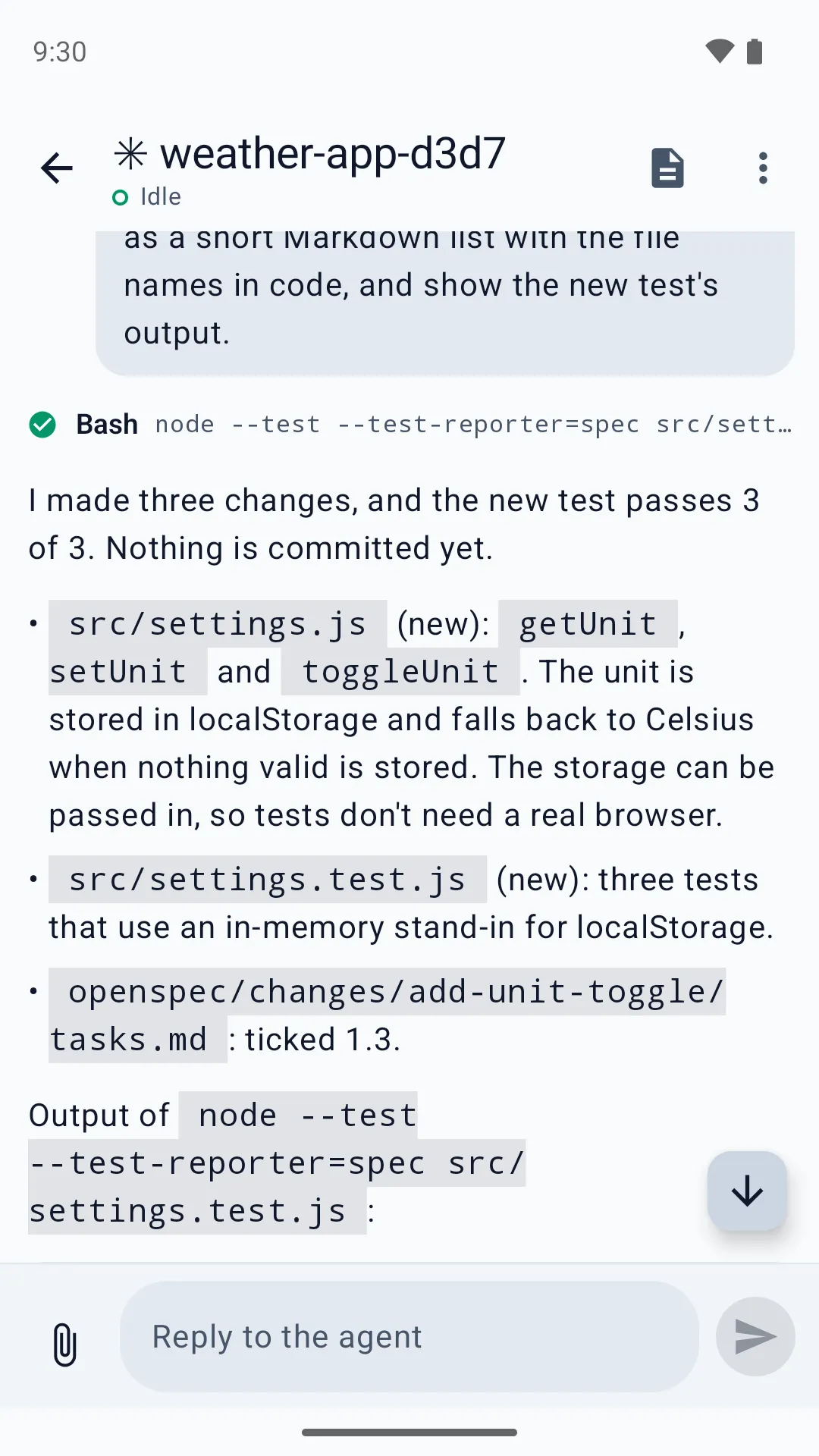
- Read and reply: an agent’s messages and tool calls, with photos, PDFs, and text files attached to your reply.
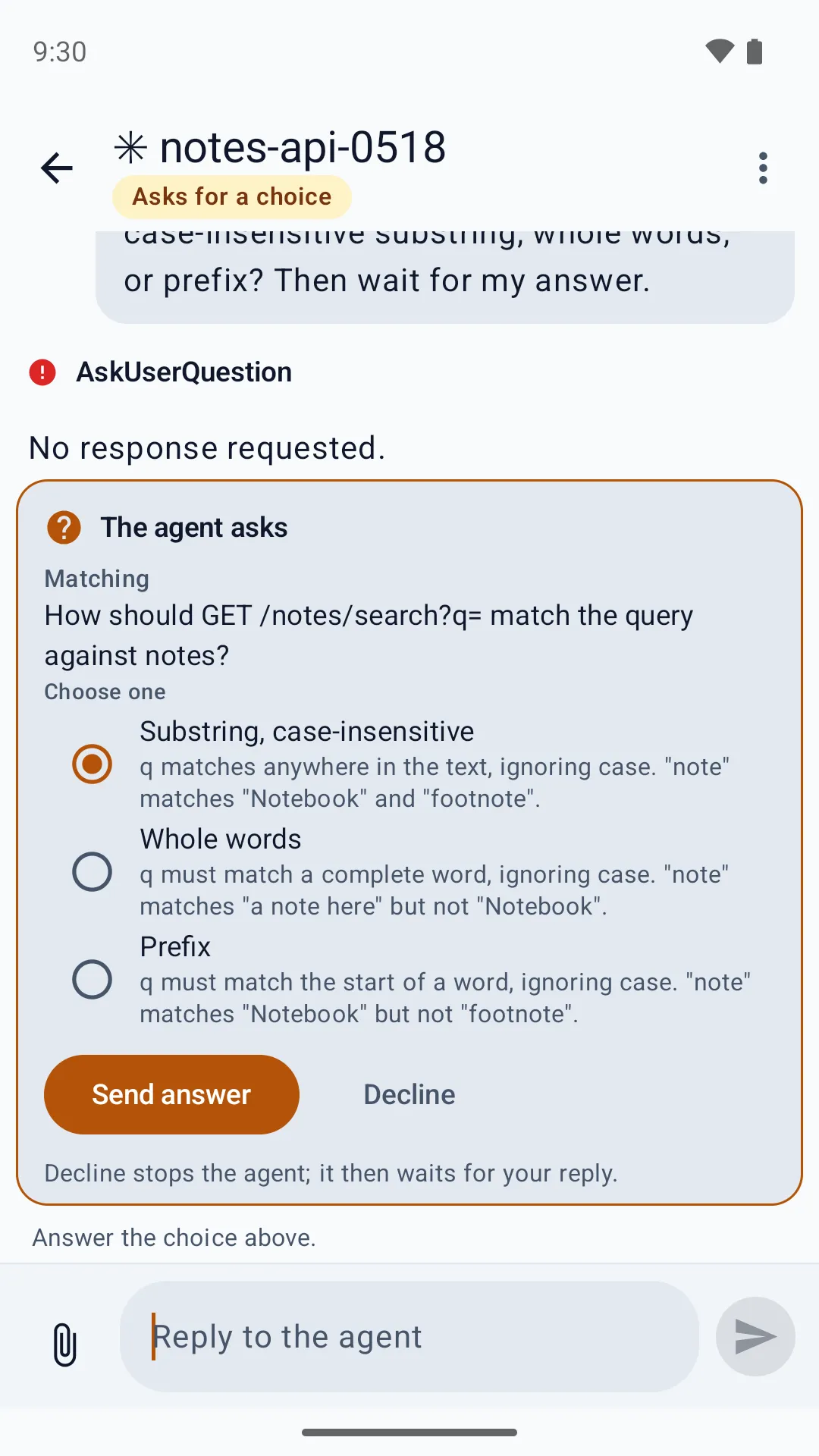
- Answer prompts: allow or deny a permission, pick an answer to an agent’s question, approve a plan.
- Manage sessions: start one in any folder, wake, rename, hibernate, or close it — without taking your computer’s screen or keyboard focus away from you.
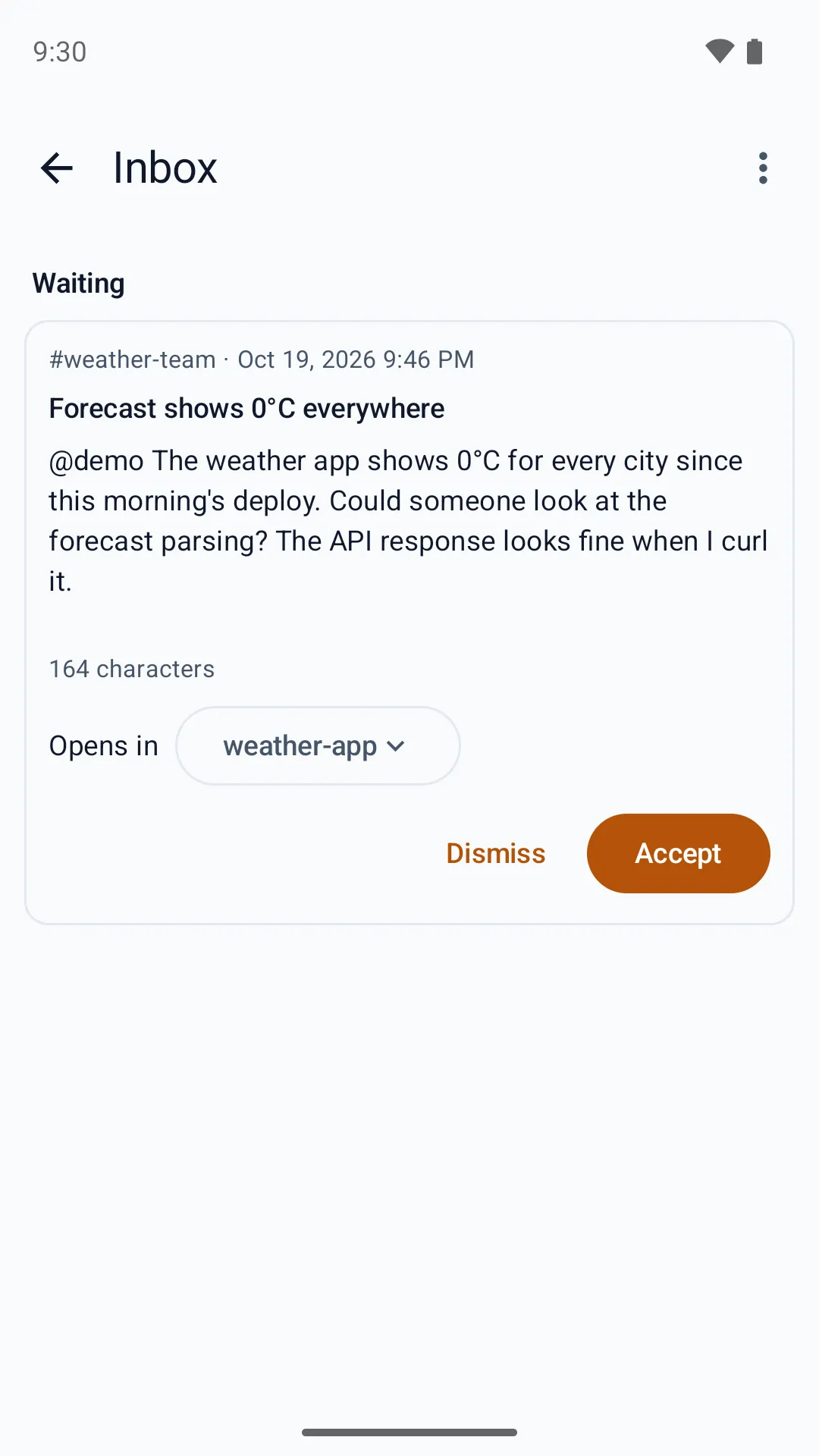
- Handle the inbox and handoffs: accept or dismiss an item, run or cancel a scheduled handoff.
- Read OpenSpec: each folder’s changes, proposals, designs, specs, and tasks, read-only.
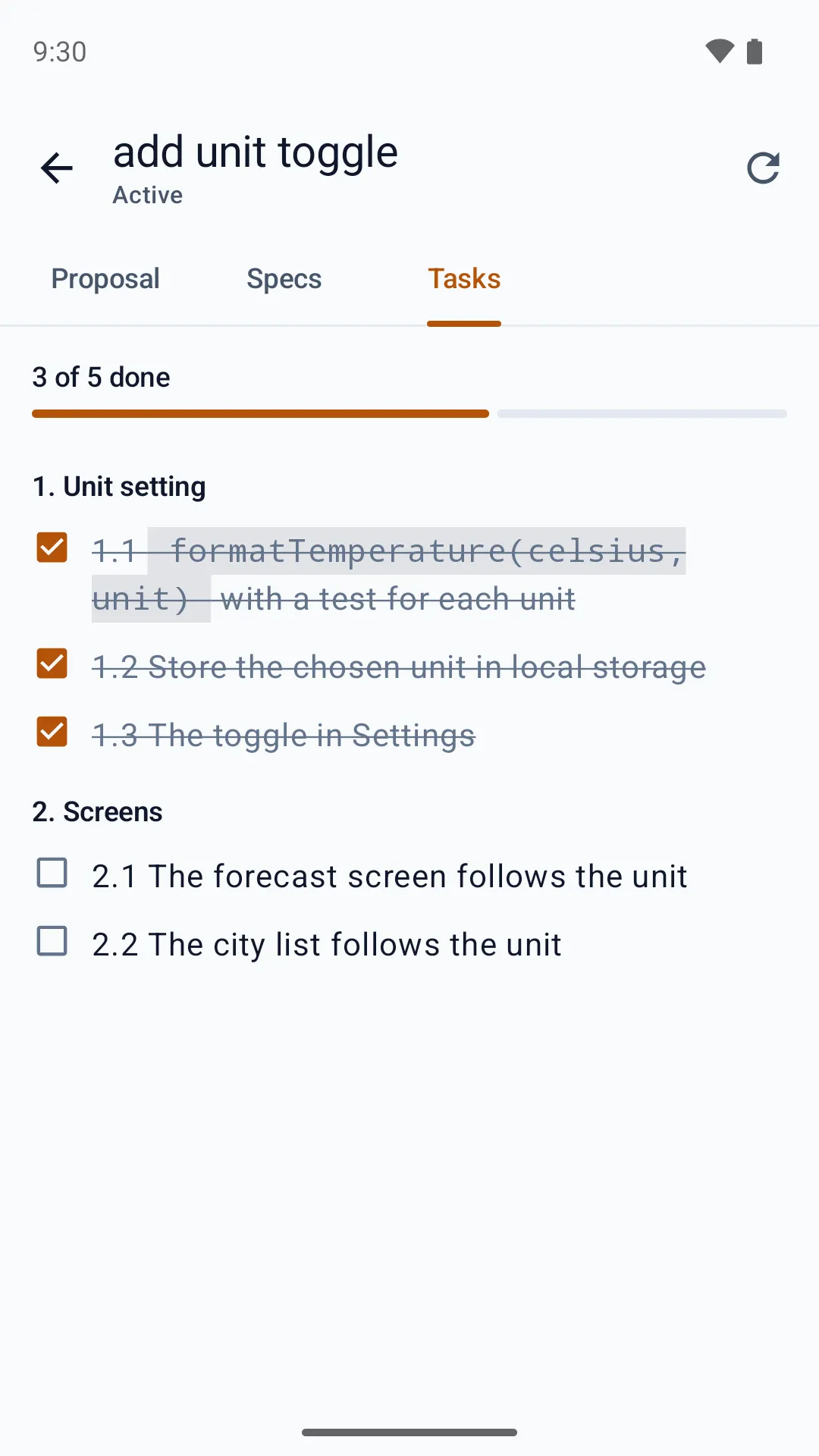
Set it up
Section titled “Set it up”- On your computer, open Settings → Remote access and turn on Allow paired devices to connect. It is off until you do.
- Choose Pair a device. spekterm shows a QR code.
- Install the app on your phone and scan the code.
The code works once, for five minutes. The phone stores its own credential, and checks spekterm’s certificate against the one in the code, so another computer cannot pose as yours.
Before you turn it on
Section titled “Before you turn it on”A paired phone can type into your sessions, and agents have a shell, so treat it like your keyboard. Remote access listens on every network interface: turn it off on networks you do not trust. You can see the paired devices, revoke one, or reset them all in the same Settings section.
Remote access is the full reference: what a paired phone can and cannot do, networks, notifications, and revoking devices. The app’s own privacy policy is here.